The compile finishes fine, then uploading fails with something like Failed to connect to ESP32: Timed out waiting for packet header, and the board just sits there. Unlike an Arduino Uno, which resets itself automatically the instant a new sketch is sent, most ESP32 boards need to be deliberately dropped into a bootloader mode before they’ll accept anything — and that step trips up almost everyone the first time.
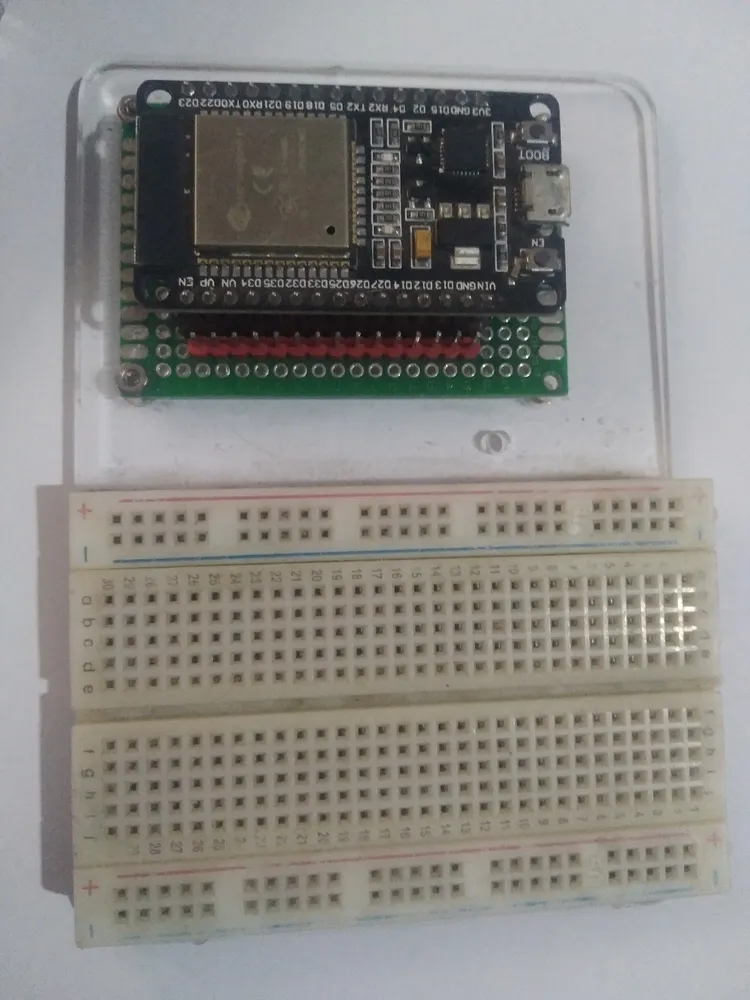
An ESP32 DevKit board. Photo: Edwiyanto, CC BY-SA 4.0 (resized)
The boot-mode button dance
An ESP32 only accepts a new upload while it’s in bootloader mode, which most boards enter by holding GPIO0 low at reset. Development boards usually expose this as a BOOT (or sometimes unlabelled) button, alongside a separate EN/RST reset button. Some boards — including the design used by my own SX1262 LoRa ESP32 board — have an onboard USB-serial chip clever enough to trigger this automatically via DTR/RTS handshaking, and just work with a plain click of “Upload.” Plenty of others, especially cheaper or LoRa/e-paper focused boards, don’t wire that handshaking up, and need the manual sequence:
- Hold BOOT down.
- Tap RESET once, while still holding BOOT.
- Release BOOT a moment after that.
- Start the upload immediately — most bootloaders only stay listening for a few seconds before the chip boots normally instead.
If uploads fail consistently with a timeout, and the board isn’t one that’s confirmed to auto-reset, this manual dance is worth trying before suspecting drivers or cables at all.
Driver and port issues
No serial port shows up at all. This is a driver problem, not a code problem. ESP32 boards use one of a small handful of USB-to-serial chips — CP2102, CH340, or occasionally FTDI — and the computer needs the matching driver installed before the board appears as a COM port (Windows) or /dev/tty* device (Mac/Linux). Check which chip a specific board uses (often printed on the chip itself, next to the USB connector) and confirm the right driver is installed; this is usually a one-time setup step per new computer rather than something that needs redoing per project.
A charge-only USB cable. The same issue that causes phantom “no board detected” errors on every other USB-microcontroller platform — some cheap cables carry power but not data. Swap to a cable already confirmed to transfer data, ideally a short one.
Wrong board or wrong port selected in the IDE. Worth a direct check before deeper troubleshooting — a board list with several similar-sounding ESP32 variants is an easy place to have picked the wrong one, and it can still appear to almost work while behaving oddly.
Upload speed set too high for the specific board or cable
Some boards, especially ones with a longer or thinner internal USB trace, or a slower USB-serial chip, don’t reliably handle the IDE’s default upload baud rate (often 921600). If uploads fail partway through, rather than immediately at connection, dropping the upload speed to 115200 in the IDE’s board settings is a quick, low-cost thing to try — it’s slower, but considerably more tolerant of a marginal connection.
Something else already has the serial port open
A left-open Serial Monitor window, a second instance of the IDE, or another program (a terminal emulator, a data-logging script) holding the port open will block the upload tool from claiming it, usually with an error about the port being busy or inaccessible. Close anything else that might be talking to the port before retrying.
Power-related upload failures
If the board browns out or resets mid-upload rather than failing to connect at all, that’s a power supply issue rather than a driver one — see the ESP32 brownout detector fix for the usual causes, which are largely the same weak-cable and weak-port issues covered there for Wi-Fi-transmit brownouts.
Quick order to try things in
Check the port and driver are actually detected first — nothing else matters until that’s true. Then try the manual boot-button sequence if the board isn’t a confirmed auto-reset design. Then drop the upload speed if it’s failing partway rather than immediately. Power and cable issues are worth ruling out throughout, since they’re the most common root cause hiding behind several of these symptoms at once.

